v3.4Head-to-head records · compare two players · tap any ball strip · search your squadCheck it out
All help guides

Dark mode, light mode and changing the app icon

Quick MatchFull Match

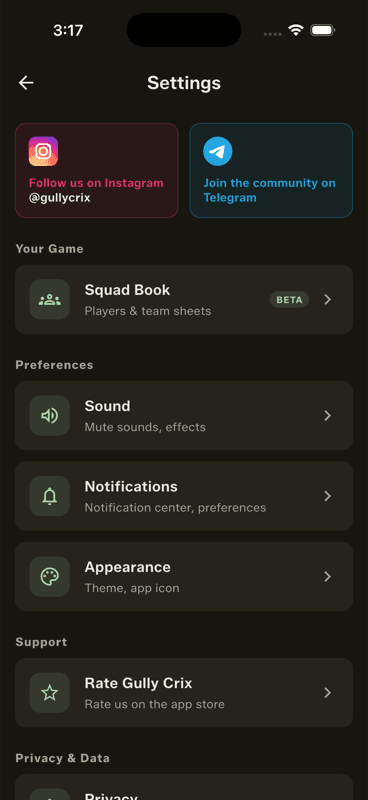
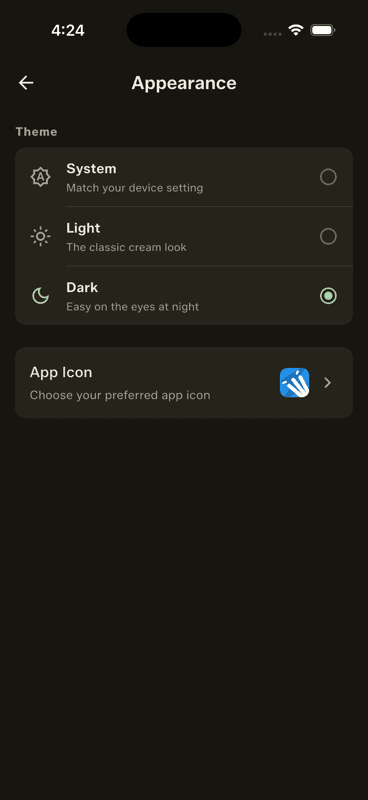
Settings → Appearance. Choose System, Light or Dark for the theme, and pick from several app icons. The scoring screen keeps the team colours in either theme.

Step by step

  1. 1

    Open Settings → Appearance

    The gear icon on the home screen, then Appearance.

    Open Settings → Appearance
  2. 2

    Pick a theme

    System follows your phone; Light is the classic cream look; Dark is easier at night.

    Pick a theme
  3. 3

    Choose an app icon

    Tap App Icon and pick your colour. Your home screen updates immediately.

Which to use at the ground

In bright sun, Light is usually easier to read. Under floodlights or a late finish, Dark. Set it to System and your phone decides.

Team-coloured panels stay bold in both themes — the score is meant to be readable at arm's length in either.

People also ask

Does the cricket scoring app have a dark mode?

Yes. Gully Crix offers System, Light and Dark themes in Settings → Appearance, and the team-coloured panels stay bold in either.

Which theme is best for scoring cricket outdoors?

Light is usually easier to read in bright sun; Dark suits floodlights and late finishes. System follows your phone automatically.

Last updated 2026-08-09

Join Gully Crix Telegram Community