Full Match Setup in GullyCrix: Players, Team Sheets & the One Rule That Trips Everyone Up

In GullyCrix you can play your games in Full Match mode — the mode where every player's statistics and all the match data are properly recorded. It's what you reach for when you want a complete, lasting record of the game rather than just a quick scoreline.
Before you can start a Full Match, there's a short bit of setup: adding players, building team sheets, and picking the two sides. Most of it takes seconds. But there's one rule that catches new users out every time — the same player can sit in as many team sheets as you like, yet cannot play for both teams in a single match. This guide walks through the whole flow with that rule front and centre, so you'll never get stuck on the setup screen.
1. Add your players in the Squad Book
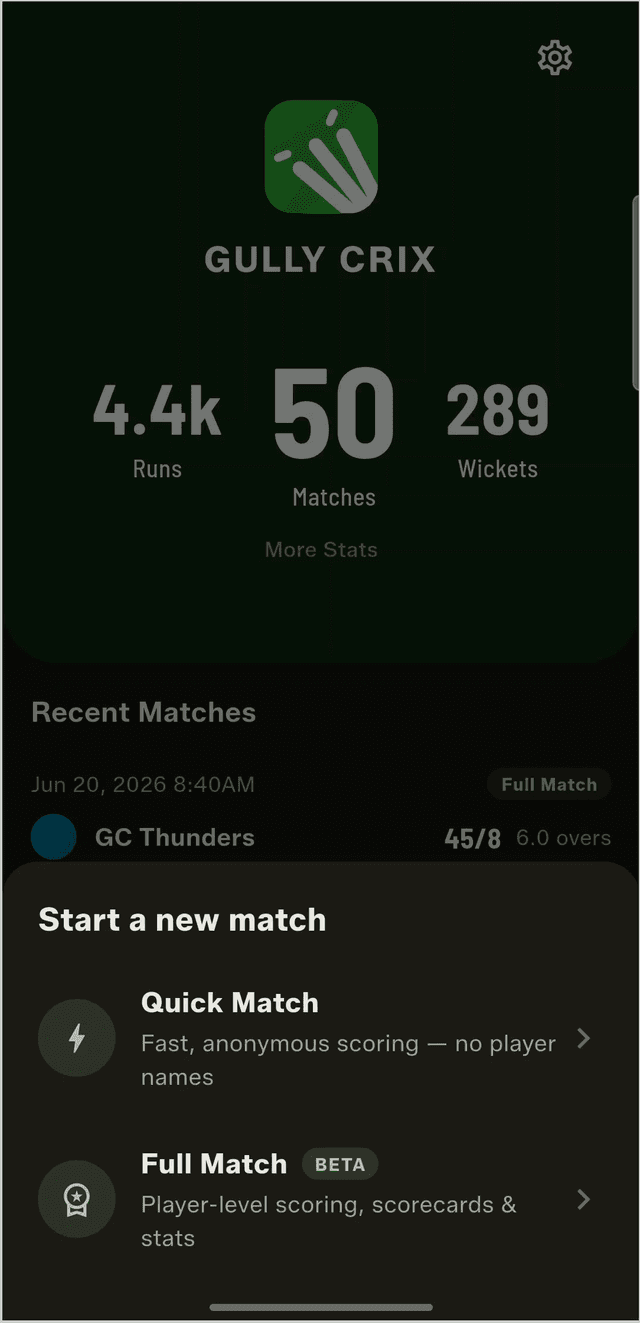
Everything starts in the Squad Book. Open it, go to the Players tab, and add every player you might field — tap Add Player and enter their name and role. The players you add here are the building blocks for all of your teams, so it's worth adding everyone up front. Do it once and you'll never have to type their name again.

2. Build team sheets — and feel free to reuse players
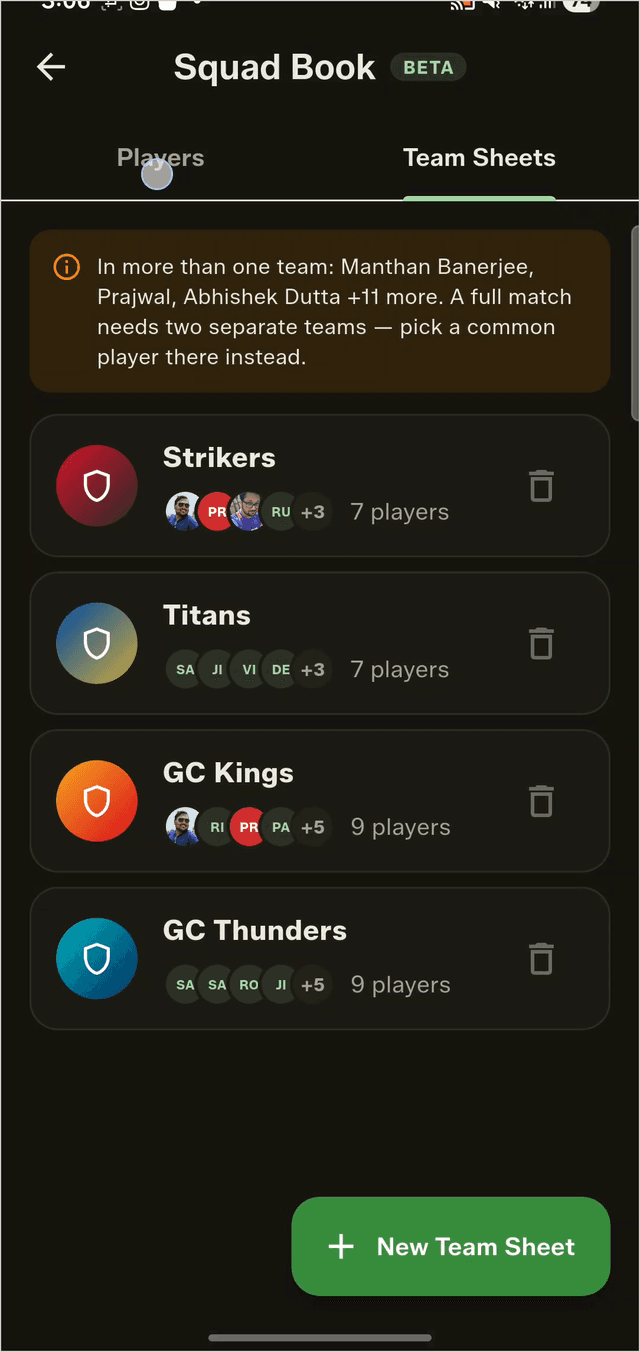
Next, switch to the Team Sheets tab and use those players to create teams. Here's the flexible part: the same player can be used in as many team sheets as you like. This is deliberate. In casual cricket, fifteen or twenty of us show up and the line-ups change every week — so you build several squads from one shared pool of players rather than one fixed team.
GullyCrix even flags this for you. The Team Sheets tab shows a note such as "In more than one team: Manthan Banerjee, Prajwal, Abhishek Dutta +11 more," reminding you that those players are shared across squads.
3. At match time: two teams, equal size, no shared players
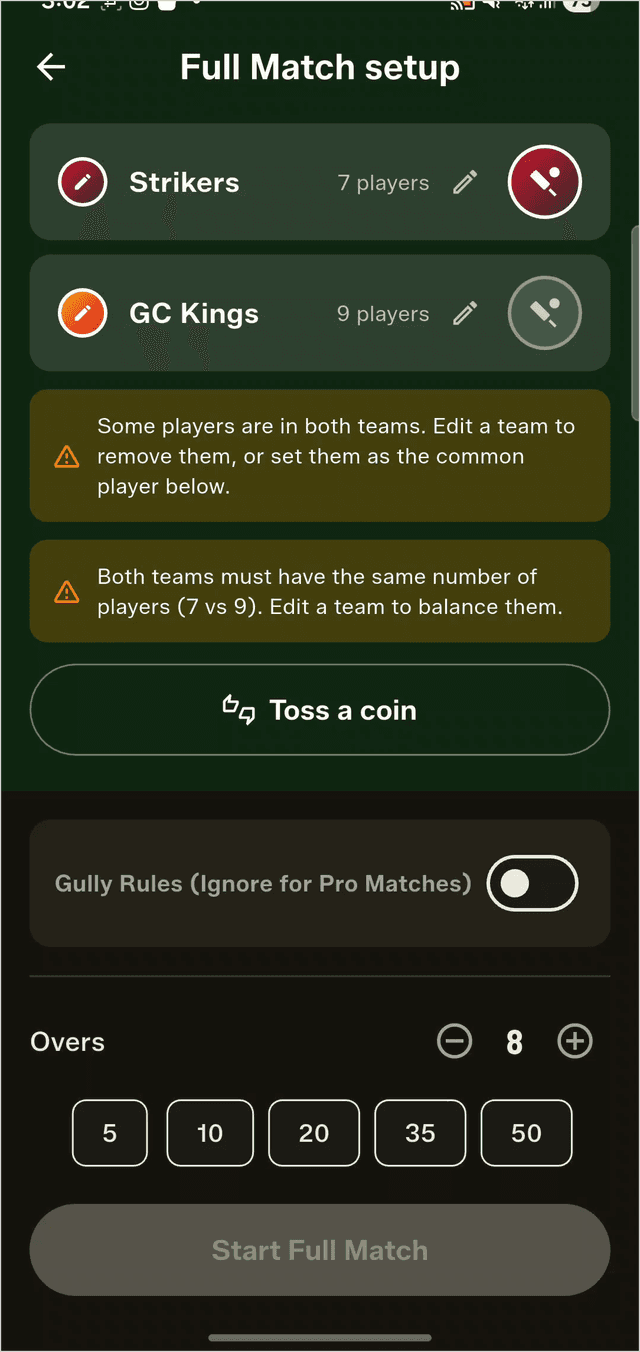
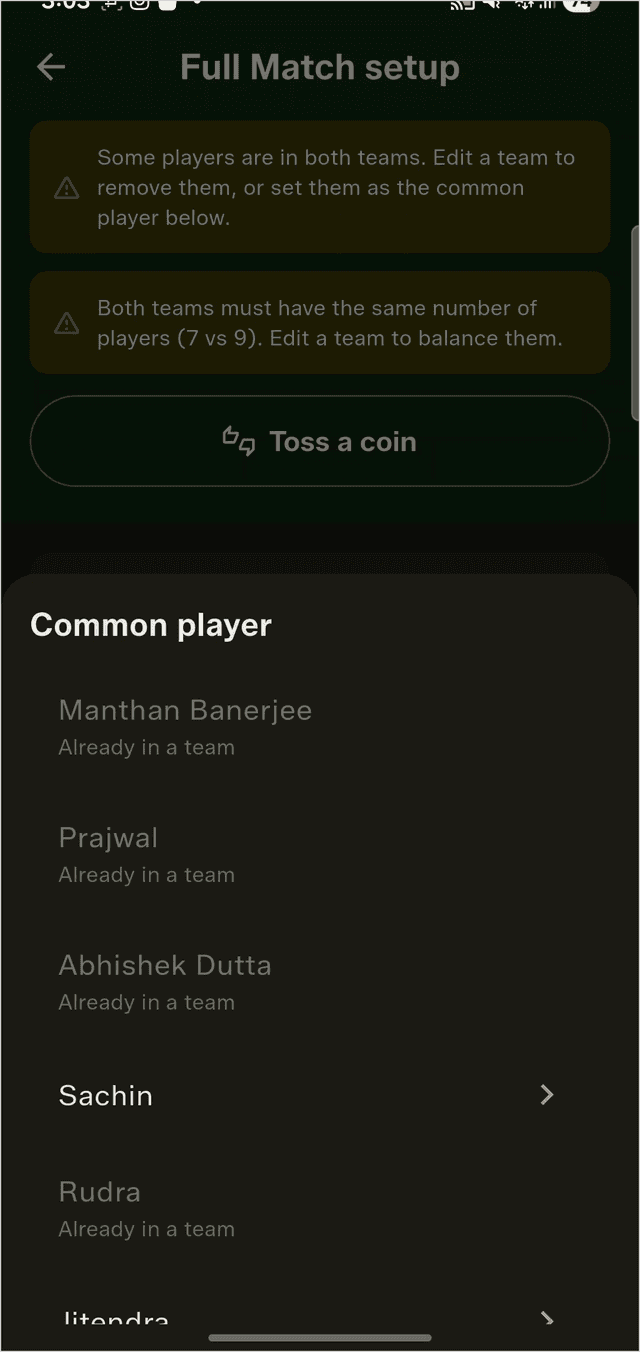
Now try to start a Full Match. If you pick two squads that overlap — say Strikers vs GC Kings, where Manthan and Prajwal belong to both — GullyCrix stops you with two errors and won't let you continue:
- •Unequal sides — "Both teams must have the same number of players (7 vs 9). Edit a team to balance them." Both squads have to field the same number of players.
- •Shared players — "Some players are in both teams. Edit a team to remove them, or set them as the common player below." The same player can't turn out for both sides at once.
4. Need one player on both sides? Use the Common Player option
Short on numbers and want one player to feature for both teams? GullyCrix has a proper provision for it under Gully Rules. Turn on Gully Rules and choose a Common Player — gully cricket's most famous rule, built right into the setup.
Two conditions apply to that common player:
- •They must already exist in your Squad Book players list.
- •They must NOT be in either of the two teams you've selected for the match.
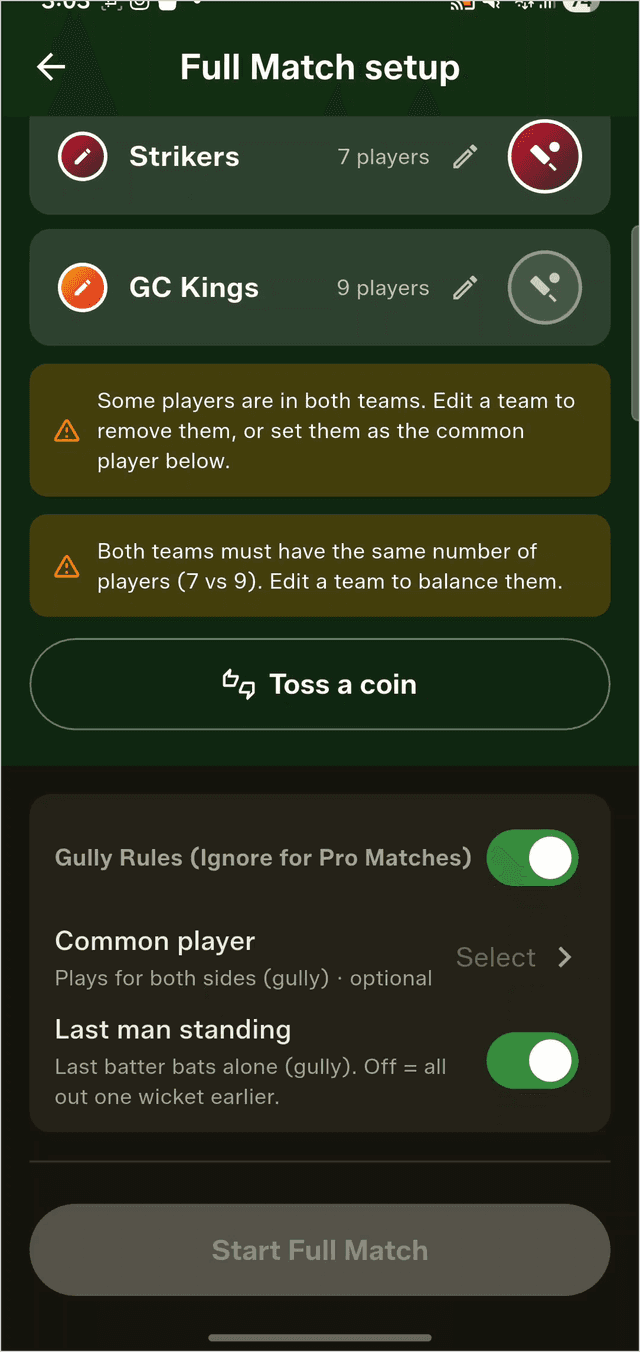
If a player is already in one of the chosen teams, the picker greys them out and shows "Already in a team," so you can't select them as the common player. Pick someone who isn't on either side instead — in the example below, only Sachin is selectable.
5. The fix: pick two genuinely separate teams
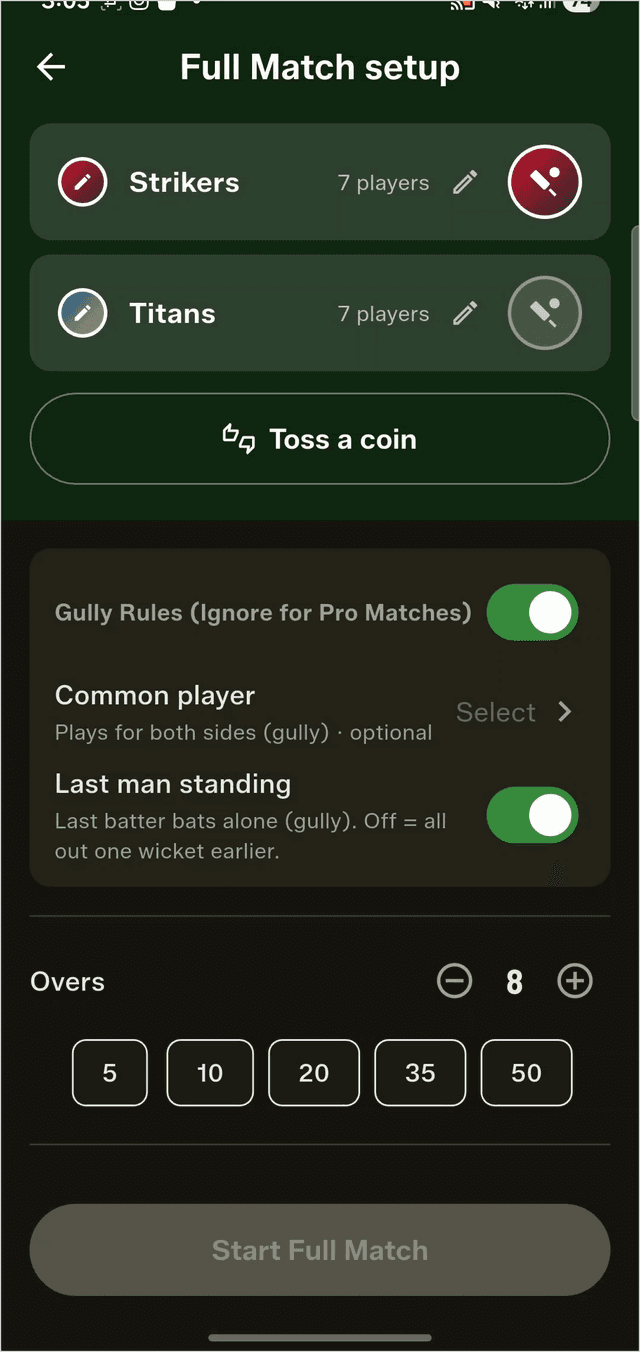
The simplest way to clear the errors is to choose two teams with completely different players. Swap one side for a squad that doesn't overlap — for example, replace GC Kings with Titans. The moment both teams have all-different players and matching sizes (here, seven a side), both errors vanish and the setup lets you continue to the toss.
6. Edit a team on the fly during setup
You don't have to leave the setup screen to make changes. On each team's row you can edit three things directly:
- •Colour — tap the colour to change the team's colour.
- •Team — tap the team name to switch to a different team.
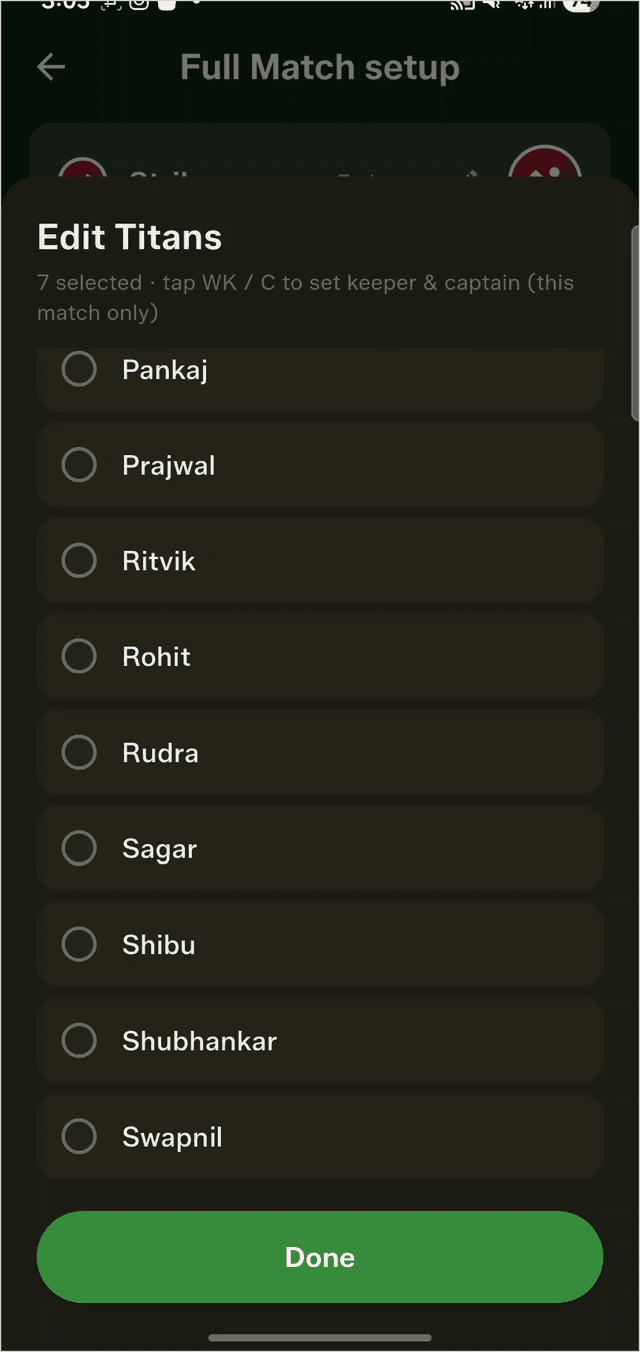
- •Players — tap the edit (pencil) icon to add or remove players for this match, on the fly. You can also tap a player to set the wicket-keeper and captain for this match only.
Quick recap
- •Add all your players in the Squad Book first.
- •Build team sheets from them — the same player can sit in multiple team sheets.
- •To start a Full Match, the two teams must be equal in size and share no players.
- •To play one player for both sides, enable Gully Rules and set a Common Player who isn't already on either team.
- •Swap in a non-overlapping team to clear the errors; you can also edit colour, team and players inline during setup.
That's the one thing to keep in mind when setting up a Full Match — everything else is a few taps. Want the bigger picture? See what Full Match mode records, or download GullyCrix and score your next game properly. Happy scoring!